Configure Multi-Factor Authentication Methods
After enabling the Multi-Factor Authentication(MFA) for your tenant, admins can configure authentication methods for their accounts.
To set up a MFA method:
- In the Admin Portal, go to Users and select the user account you want to update.
- On the User details page, select the Account tab.
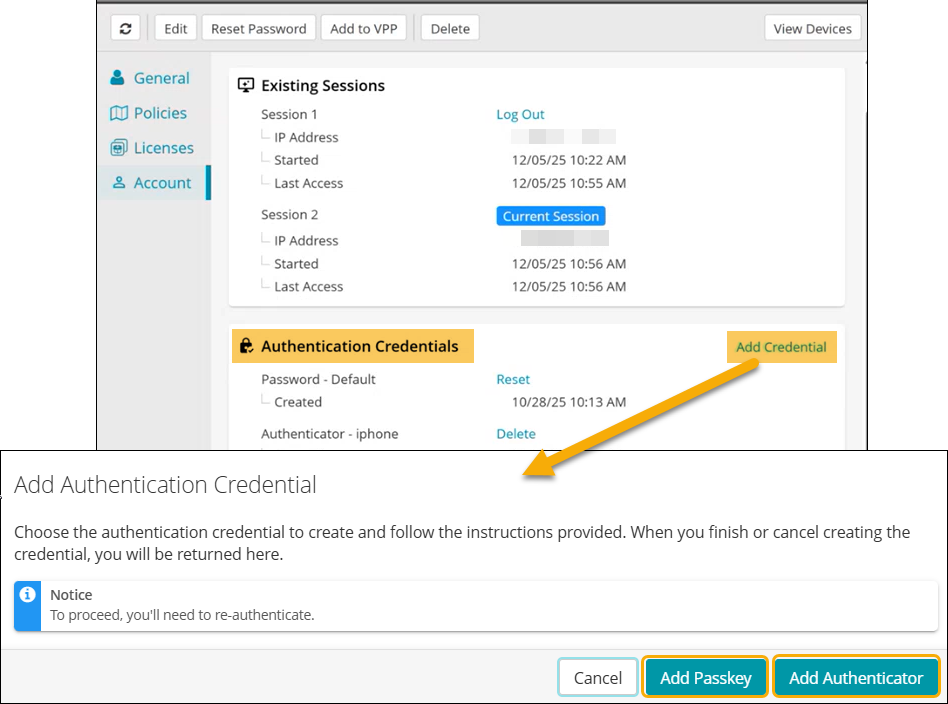
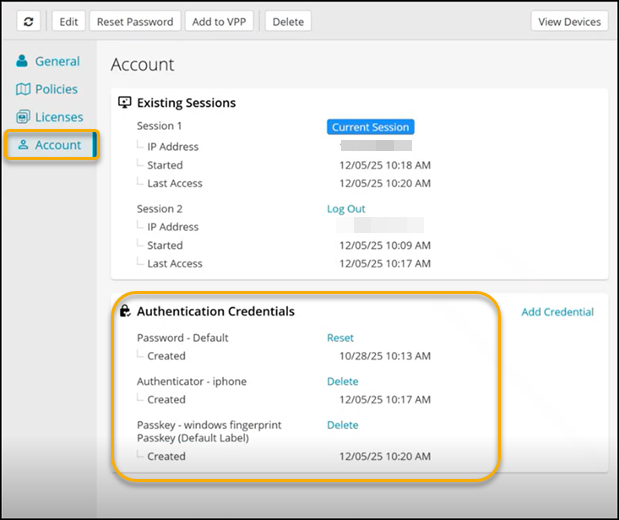
- Under Authentication Credentials, review existing credentials:
- Password (default)
- Any previously configured MFA methods
- To add a new MFA method, click Add Credential to open the Add Authentication Credential dialog.
- Choose one of the following from the Add Authentication Credential dialog:
- Authenticator App- Select this option to set up MFA using an app such as Microsoft Authenticator or Google Authenticator. For more details, see Configure Authenticator App.
- Add Passkey - Select this option to use biometric authentication (fingerprint or face recognition) or a hardware security key. For more details, see Configure Passkey.
- Click Submit to save the credential.
The new method appears under Authentication Credentials. - (Optional) To remove an outdated method, select Delete next to the credential.
Configure Authenticator App
To configure Authenticator App:
- On the User details page, select the Account tab.
- Go to the Authentication Credentials section, and click Add Credential to open the Add Authentication Credential dialog.
- Click Add Authenticator.
- The system prompts you to re-authenticate:
- Enter your password.
- Complete the email-based MFA challenge (enter a one-time code sent to your registered email) and click Log in.
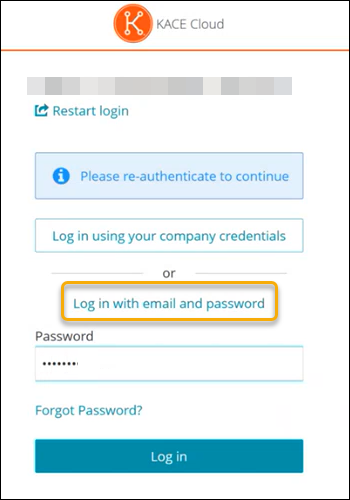
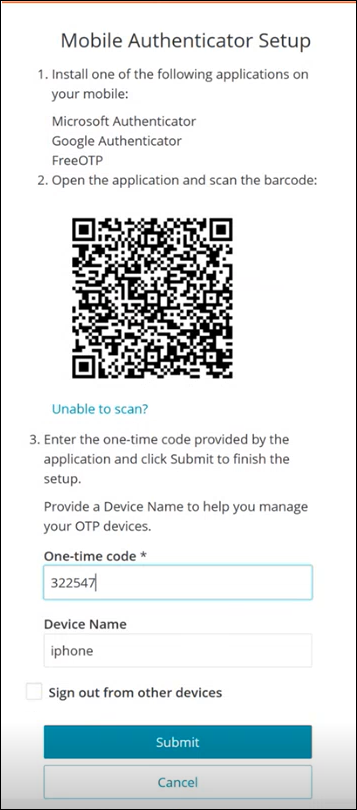
- After successful re-authentication, the Mobile Authenticator Setup page appears.
- Install one of the following applications on your mobile:
- Microsoft Authenticator
- Google Authenticator
- FreeOTP
- Open the application and scan the QR code displayed on the page using the authenticator app.
- Enter the one-time code generated by the authenticator app.
Or
If you cannot scan the QR code, click Unable to scan? link for manual setup. - Assign a name to the authenticator app (for example, My iPhone or Android Device) for easy identification.
- Click Submit.
- Install one of the following applications on your mobile:
- Confirm that the new authenticator app appears in the Authentication Credentials list.
Additional Details
- You can configure multiple authenticator apps (for example, one on iOS and another on Android).
- During login, if multiple apps are configured, choose the app you want to use.
- If MFA is required for your tenant, the authenticator app becomes the default method during login. You can still choose Try Another Way to use email or other configured methods.
Configure Passkey
To configure a Passkey:
- On the User details page, select the Account tab.
- Go to the Authentication Credentials section, and click Add Credential to open the Add Authentication Credential dialog.
- Click Add Passkey.
- When prompted, select the type of passkey you want to configure:
- This Device: Use your computer’s built-in biometric feature (for example, Windows Hello Fingerprint, macOS Touch ID).
- Mobile Device: Use your iPhone or Android device to approve access.
- Security Key: Use a USB hardware key.
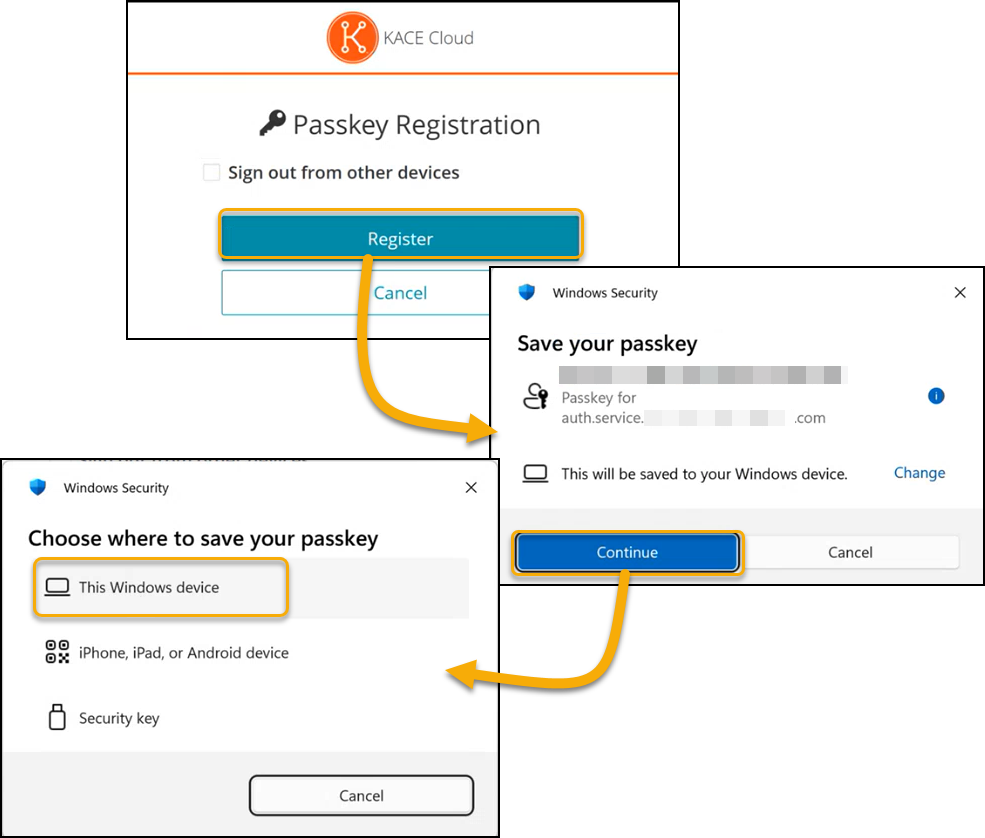
- Follow the on-screen prompts:
- If using Windows device, place your finger on the fingerprint reader, use facial recognition, or a personal identification number (PIN).
- If using Mobile Device, approve the request on your phone.
- If using Security Key, insert the USB key and confirm.
- Assign a name to the passkey for easy identification.
- Click OK to complete the setup.
- Confirm that the new passkey appears in the Authentication Credentials list.
|
|
NOTE: Passkey options vary by operating system. |
